
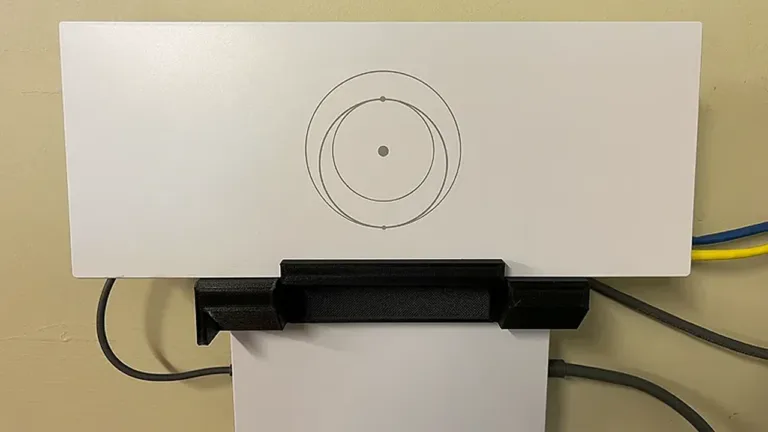
You plug it in, unplug it, try a different outlet. Nothing. No light, no blink, no sign the router is getting power. This happens more often than you’d think, especially after a storm or a power outage. Here’s what to check before you give up and request a replacement.
The problem could be the power cable, the adapter, the wall outlet, or the router itself. Most of the time the fix is simpler than you expect. When it’s not, at least you’ll know exactly what to tell support.
Check the cable and power adapter
Start with the cable. It sounds obvious, but plenty of “dead” routers come back to life just by reseating the connection. The power cable runs from the adapter to the router. If it’s loose at either end, the router won’t get power.
- Disconnect the cable from the router and the adapter.
- Inspect both ends for bends, frays, or burn marks.
- Reconnect them, pushing until you feel it click into place.
- If you see scorch marks or the cable is deformed, stop using it. That adapter needs to be replaced.
- Plug the router into a different wall outlet. Skip extension cords and old power strips. If it turns on in a different outlet, the issue was your home wiring, not the router.
Power outages and voltage drops are common in many regions. If your area gets frequent brownouts, consider a voltage regulator or surge protector for the wall outlet. Starlink recommends against using third-party adapters with the router, so the protection goes on the wall, not between the adapter and the router.
Do a proper power cycle
If the connections are fine but the router is still dead, do a real power cycle. This isn’t the same as turning it off and on. You need to leave it unplugged long enough for the internal circuits to fully discharge.

Unplug the router’s power cable. Wait a full 60 seconds — no less. Plug it back in. If the router was locked up after an outage or a failed update, this usually fixes it. Give it about 5 minutes to fully boot. If you see the white LED come on, you’re good.
Check your circuit breaker
One cause most people skip: the breaker for the room where your router is. If it tripped from a surge or a short, the outlet won’t have power even if it looks fine.
Go to your electrical panel and find the breaker that controls that room. If it’s in the middle position or flipped down, reset it by switching it to “OFF” and then back to “ON”. Check the router again.
Factory reset by generation
If none of the above worked, the last step before contacting support is a factory reset. Heads up: this erases your network settings. You’ll need to set up your WiFi name and password again from the app. For a detailed walkthrough, check our complete guide to factory resetting Starlink.
The procedure depends on your router model:
- Gen 1 router (circular): flip it over and find the reset button on the bottom. Use a paperclip or a pin, press and hold for 10 seconds.
- Gen 2 router (rectangular, no button): this one doesn’t have a reset button. The trick is to unplug and replug the power six times in a row, waiting about 5 seconds between each cycle. On the sixth time, leave it plugged in and wait for it to reboot. You’ll see a WiFi network named “STARLINK” ready to set up.
- Gen 3 router: the reset button is on the back, under a rubber cover. Peel it open, press with a paperclip for 10 seconds, and wait.
If the router still won’t turn on after the factory reset, the hardware is toast.
When to request a replacement from Starlink
If your router doesn’t power on in any outlet, with any cable, and after a factory reset, the power adapter or the router itself has likely failed. It happens. Create a support ticket from the Starlink app: go to “Settings” > “Support” > “Troubleshooting” > “Equipment”. Explain that the router won’t turn on, that you tested multiple outlets, and that there are no lights at all. If it’s under warranty, they’ll send a replacement at no cost.
While you wait, if you have a Starlink mesh node, you can use it as a temporary main router. Just factory reset it, connect it to the dish cable, and set up your network from the app. It’s not a permanent fix, but it’ll get you back online.
Starlink routers don’t fail that often, but when they do, the problem is usually simpler than it looks. Check the cables, try a different outlet, and do a real power cycle. Those three steps fix most cases. If not, you now know exactly what to tell support.